Slay the Spire 2 Cards Display Wrong — Glitched, Cut Off or Blank Fixes
Published 2026-03-25Updated 2026-09-194 min read
Cards rendering wrong in Slay the Spire 2? Switch window modes, force a 16:9 resolution at 100% scaling, swap the rendering driver, or reset settings.json. Hand-overflow tips included.
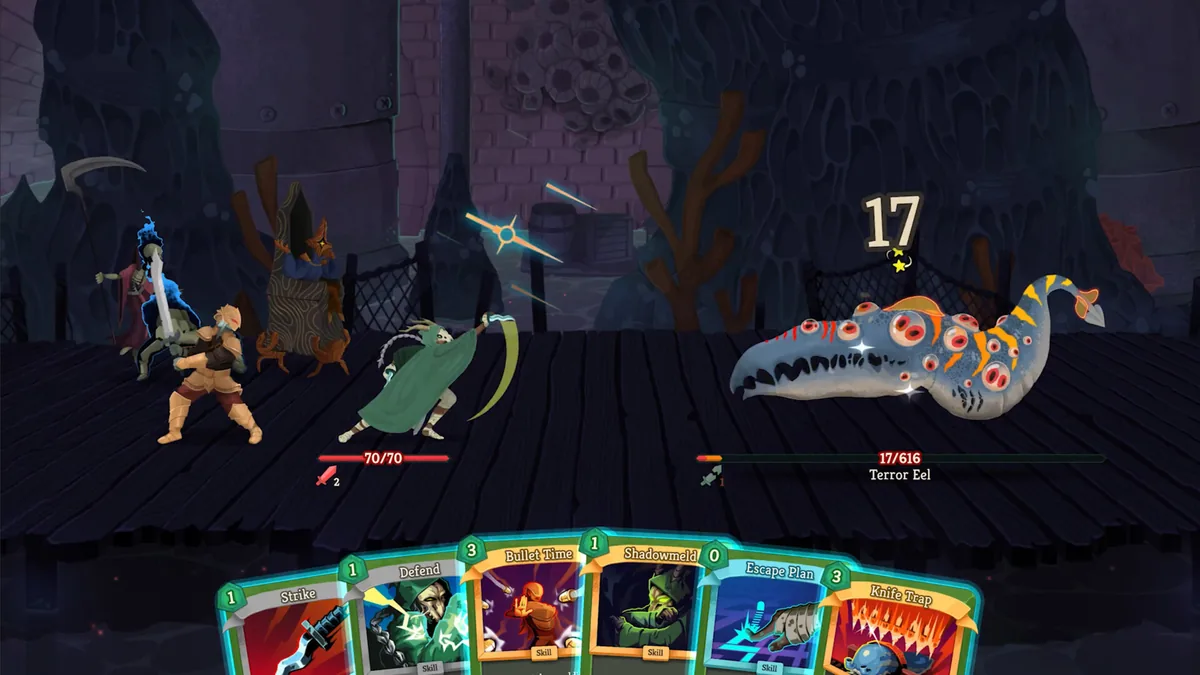
Cards cut off at the screen edge, text rendered black-on-black, or artwork that's pure static — card display bugs look alarming and are almost always one of four causes: resolution, scaling, the rendering driver, or a corrupted config file. Fix them in that order.
Fix 1: window mode and resolution
- In game: Settings → Video — toggle fullscreen to windowed (or borderless) and back to fullscreen. The toggle re-initializes the render target and fixes most cut-off layouts.
- Or force it: Steam launch options →
--windowed --resolution 1920x1080 - Use a standard 16:9 resolution (1920×1080, 2560×1440). Stretched, ultrawide and non-standard ratios are where the card layout breaks.
- Set Windows display scaling to 100% (Settings → System → Display), then restart the game. 125%/150% scaling is the top cause of clipped card frames on laptops.
Fix 2: swap the rendering driver (garbled or blank cards)
Text gone black, art full static, cards drawn as outlines only — that's the renderer. Steam launch options, one at a time:
--rendering-driver opengl3
--rendering-driver vulkan
Test each; OpenGL and Vulkan disagree with different GPU drivers, so the winner is whichever your machine doesn't hate.
Fix 3: reset the game config
- Close the game.
- Press Win + R, enter
%appdata%\SlayTheSpire2, press Enter. - Delete or rename settings.json.
- Relaunch — the game regenerates a clean default config.
Saves are not in this file (see save locations) — only graphics and audio settings reset.
The not-a-bug case: overflowing hands
A hand wider than the screen isn't a display error — drag the hand area left and right to scroll it. It is, however, a hint: hands that big usually mean the deck needs the thinning treatment.
If nothing works
Update GPU drivers, disable any forced scaling in the GPU control panel, and unplug extra monitors — multi-display setups confuse the initial layout pass. The game is Early Access; display bugs that survive all of the above are worth reporting and usually die in the next bi-weekly patch.
Keep reading: